
FS Voyager — Start your multi-stop teleport journey.
Anywhere you want to go.
You're already there.
✈Set up your list of destinations and FS Voyager drops you right in front of every landmark — distance, altitude and the best light already worked out for you.
✈Keep tapping the shortcut and you'll hop from one stop to the next, again and again...
One file · No install · No account · Free
01 / Instant arrival
Skip the flight to get to the flight.
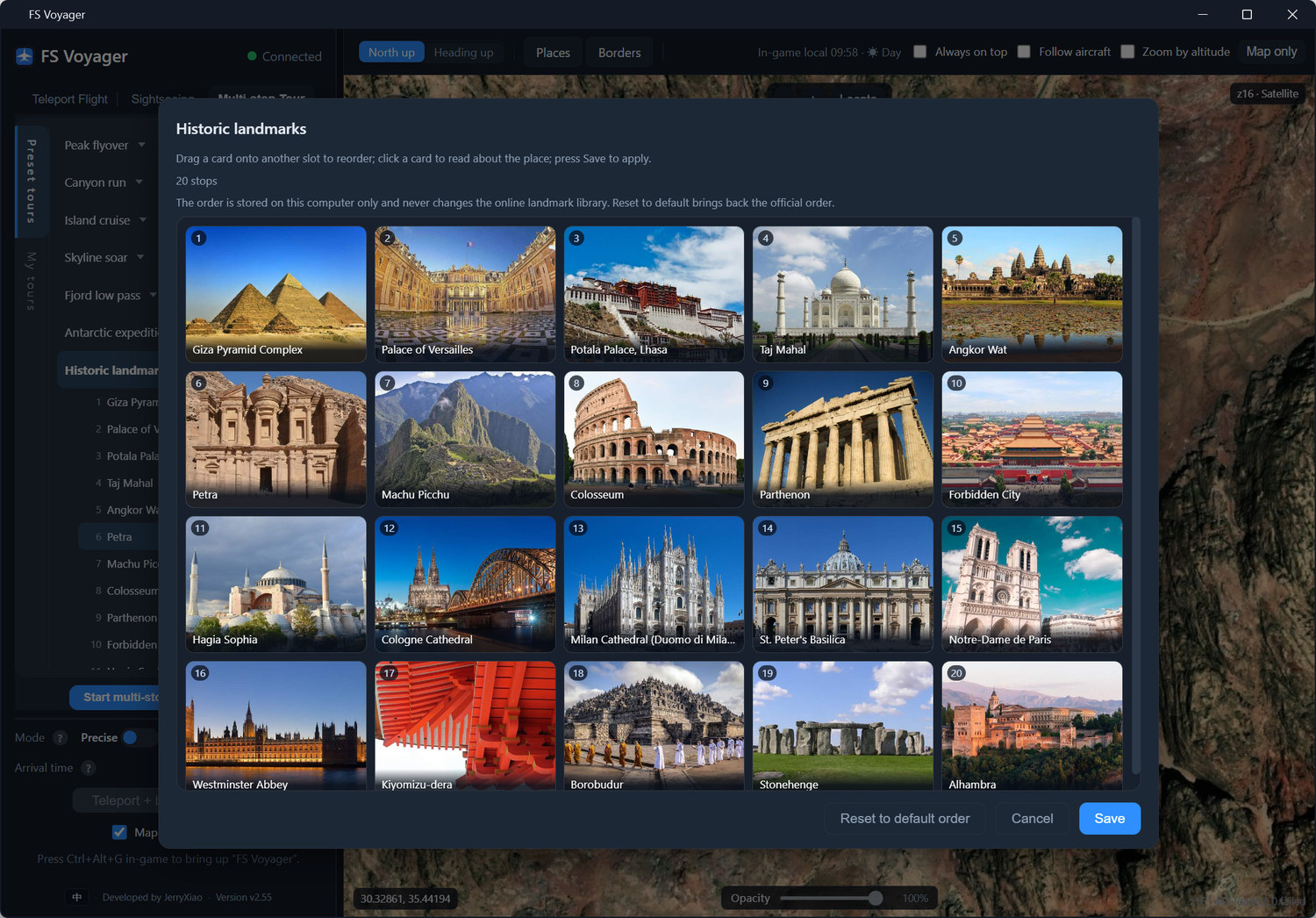
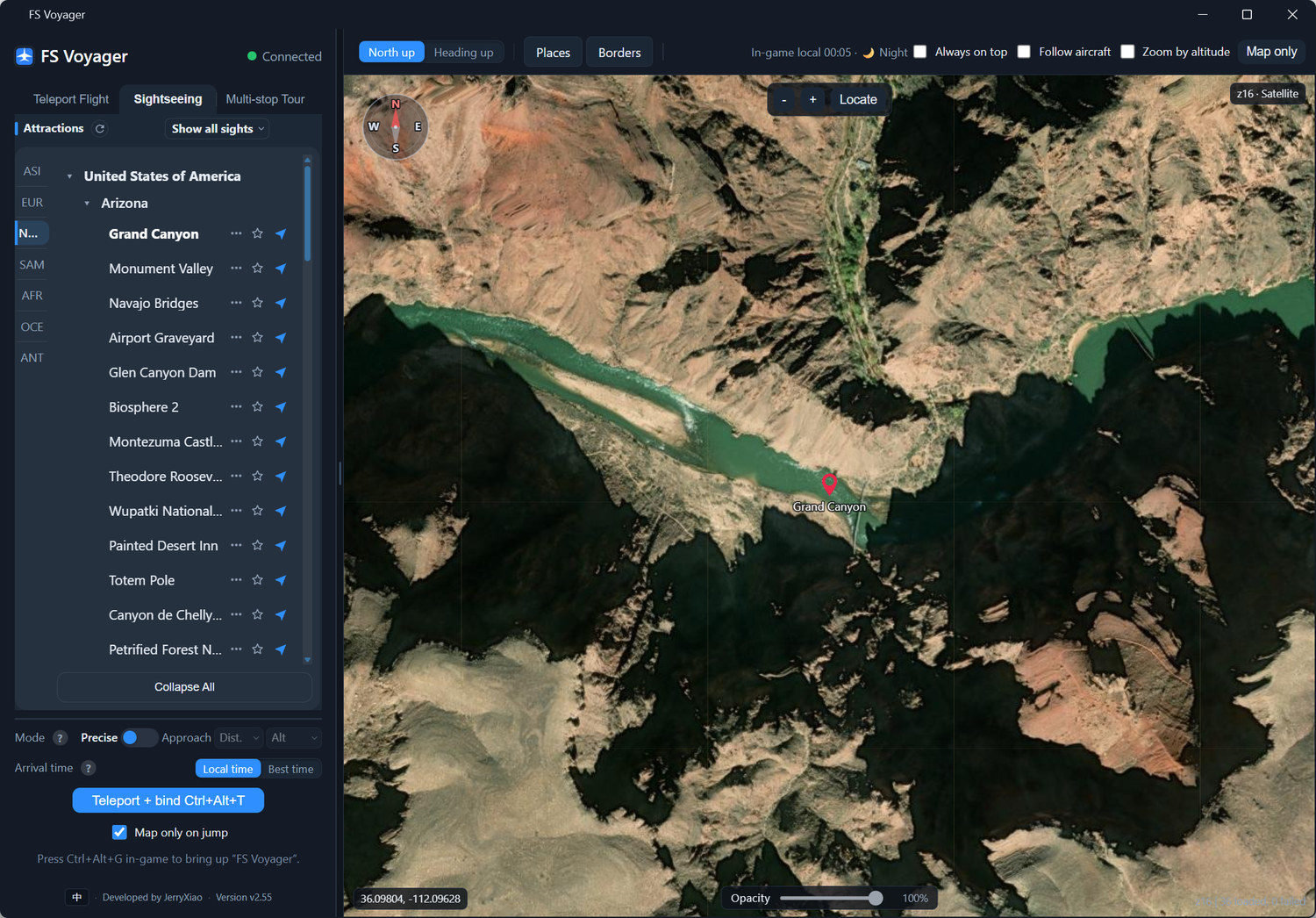
FS Voyager sits on top of the simulator while you fly. Click the map, choose a landmark, press Teleport — the world changes around you and the sim just keeps running.
- 1Find somewhereSearch, browse by continent and country, or simply click the map.
- 2Choose how to arrivePrecise drops you at the coordinates; Approach sets you up in front of the view.
- 3Keep flyingYou're still in the same session, in the same aircraft, with the sim unpaused.
Real recording: the tool's mini-map stays on screen while you fly. Nothing composited.
02 / Approach mode
Don't land on the landmark. Fly up to it.
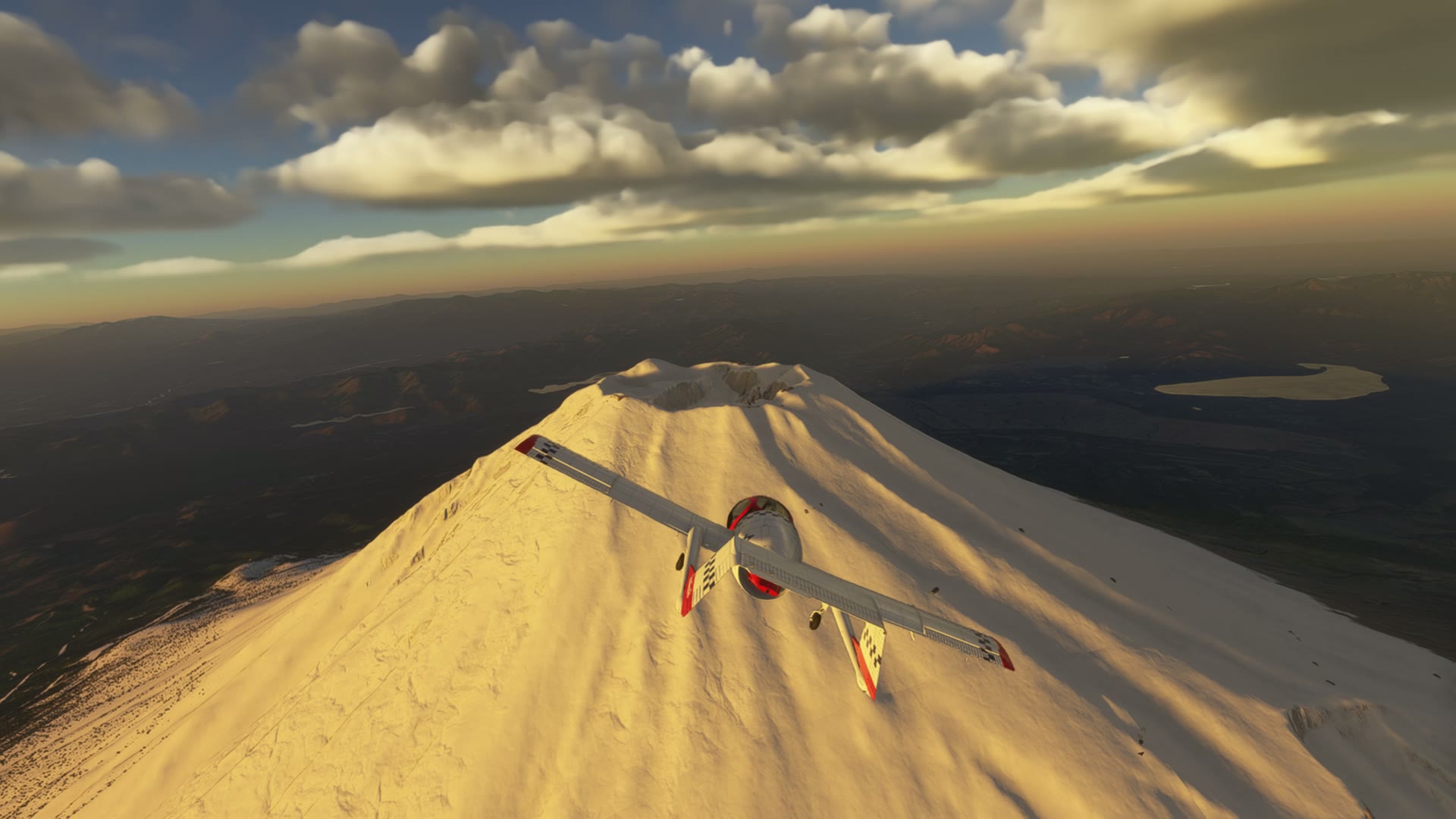
Approach mode places the aircraft a chosen distance away and at a chosen altitude, nose pointed at the subject. The mountain is something you look at — not something you clip through.
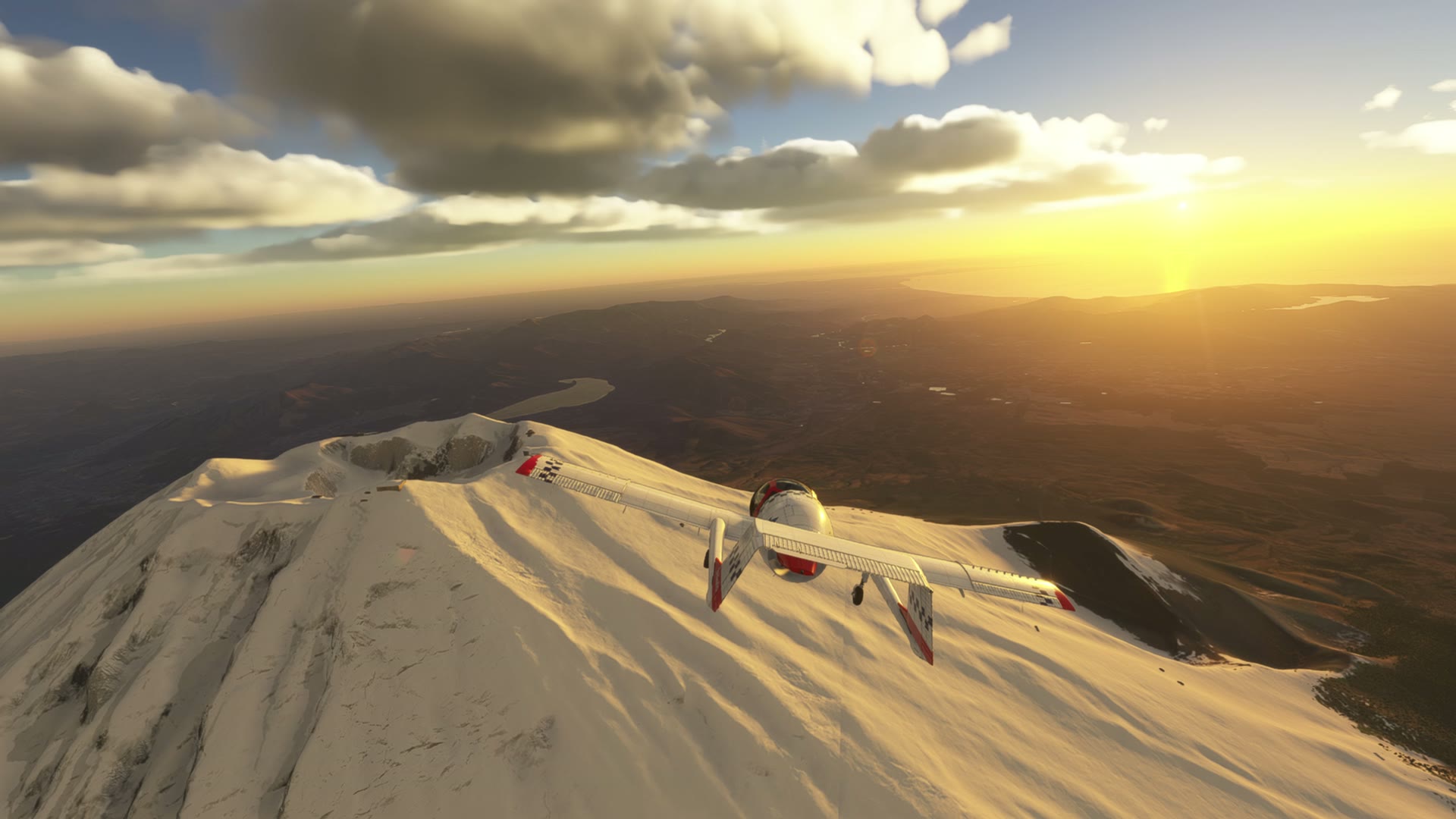
Mount Fuji at first light, captured in the simulator. Every landmark carries its own recommended camera position.
Real screen recording of the English interface, with every button in place.
03 / The landmark library
The landmarks most worth flying in the game, already picked.
Browse by continent, country or category. Every stop comes with a photo, a short read in English or Chinese, and a recommended view — it feels like flipping through a travel magazine, then going there.
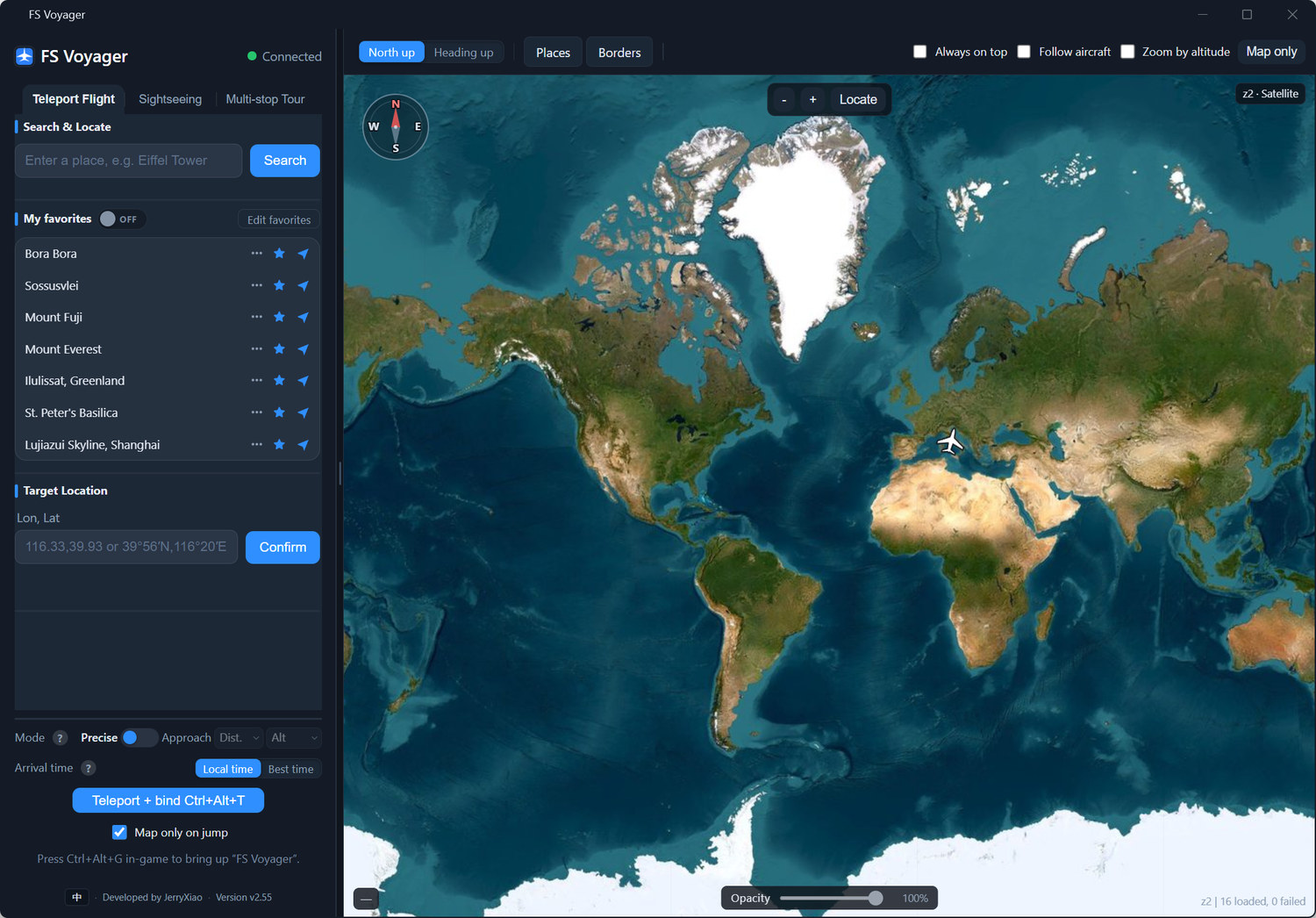
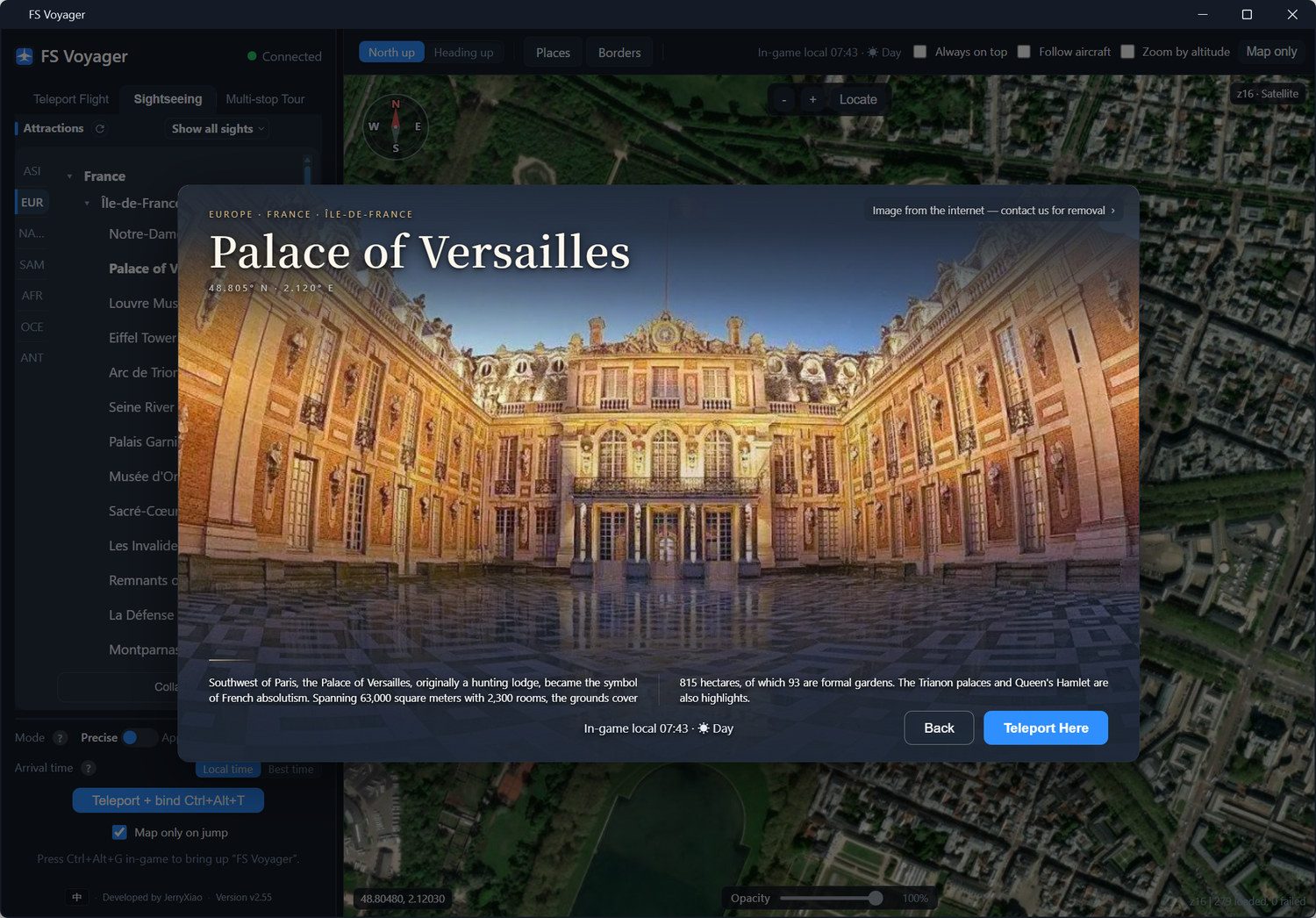
The library is hand-curated, not an official POI feed. Saved favorites and your own lists turn "somewhere interesting" into "tonight's route".
04 / Multi-stop tours
Chain the whole trip without leaving the simulator.
Build a tour from your favorites or pick a themed route. Next stop, previous stop, re-fly the current one — all from the keyboard or an Xbox controller while the game is still in the foreground.
In-game recording: in multi-stop mode, tap Ctrl+Alt+N or RB + right on the D-pad to hop from London to Paris, then on to Neuschwanstein — set the route once and fly it straight through.
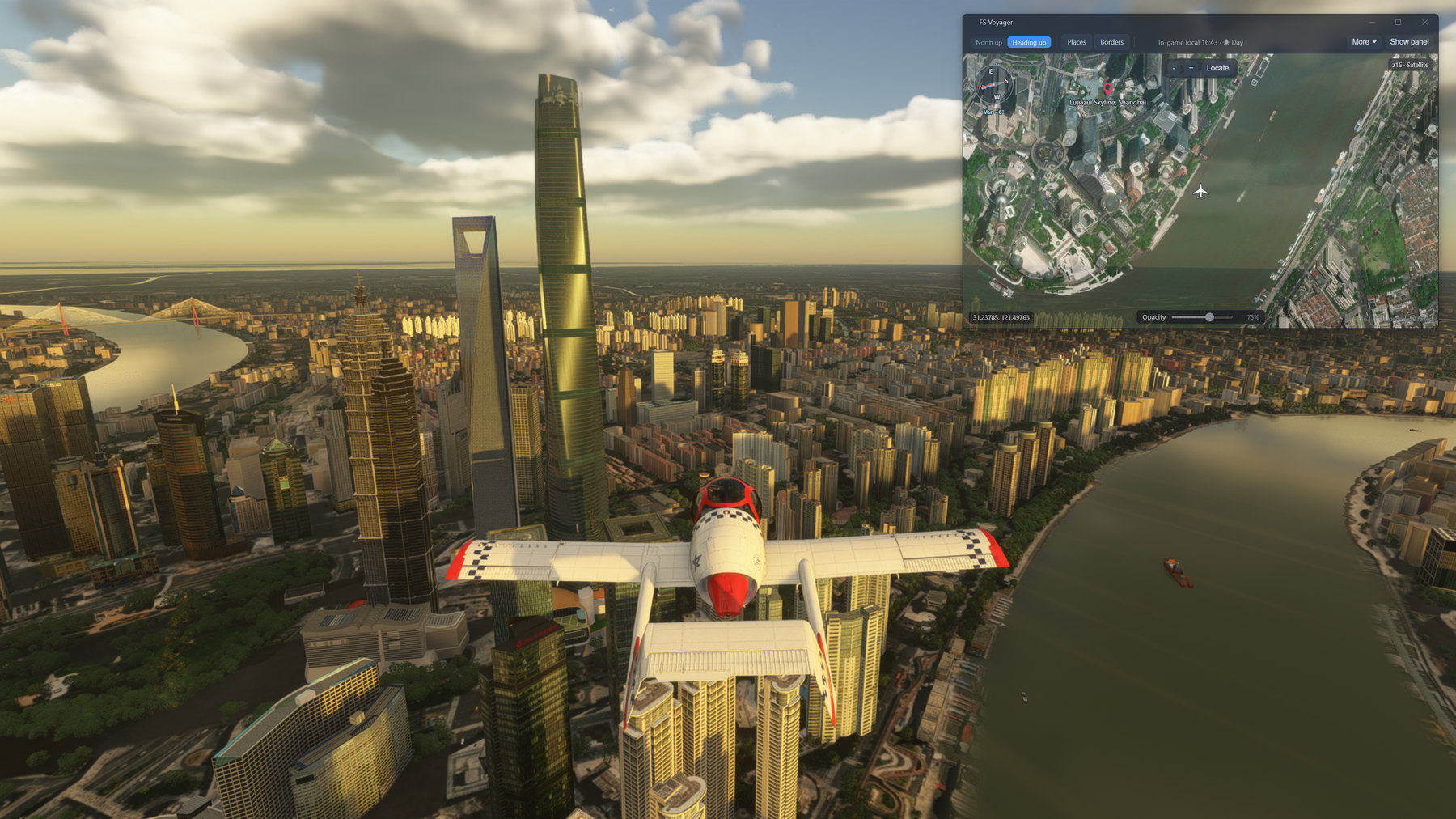 In-sim 4K capture
Over Lujiazui, with the tool still open. This is what "flying with it" actually looks like.
05 / Small, quiet, yours
Built to get out of the way.
One file. No install.
Double-click and it runs. No launcher, no account, no subscription, no settings wizard to sit through.
Stays on your PC.
Your favorites, routes and screenshots live locally. Nothing is uploaded, and the tool doesn't need a login to work.
Both sims, both languages.
Works with Microsoft Flight Simulator 2024 and 2020, with an English or Chinese interface. A controller is optional.
Ready when the sim is
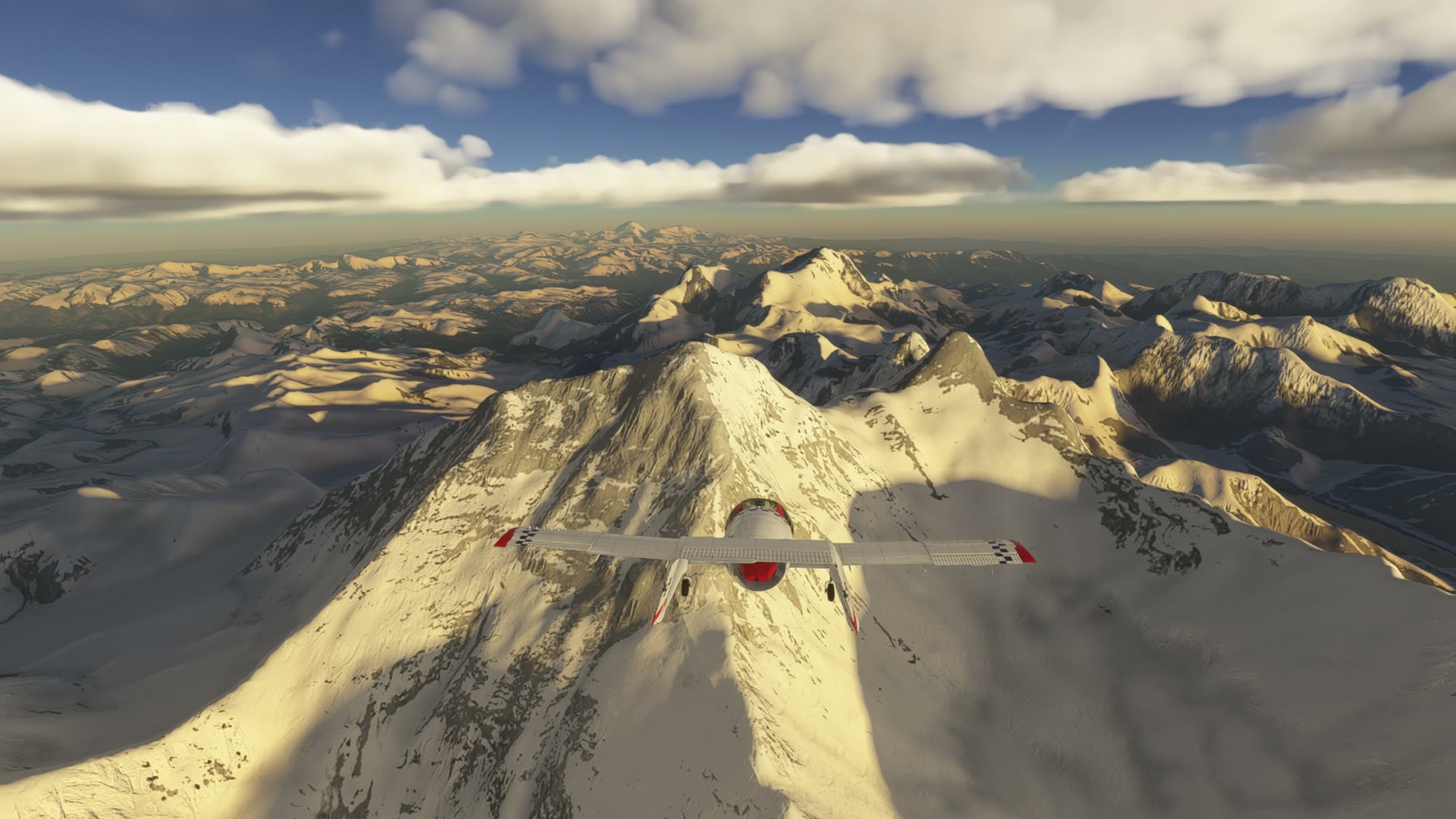
Go somewhere new tonight.
One download, one double-click, and the whole world is a departure point.
The program isn't code-signed. If Windows blocks the first run, right-click the file → Properties → tick “Unblock”, then open it again. That's normal for a small independent tool.
Good to know
A few quick answers.
Do I need to install anything, or create an account?
No. It's a single executable — copy it anywhere and double-click. There's no installer, no registration and nothing to configure before your first teleport.
Does it work with MSFS 2024 as well as 2020?
Yes. Both versions share the same SimConnect interface, so the tool detects the running sim automatically. It's the same download for either one.
What's the difference between Precise and Approach?
Precise puts the aircraft at the chosen coordinates. Approach places it a set distance away, at a set altitude, facing the landmark — much better for actually looking at the place you came to see.
Can I fly several landmarks in a row?
Yes. Build a multi-stop tour from your favorites, your own list or a themed route, then move between stops with the keyboard or an Xbox controller while the simulator stays in the foreground.
Is any of my data sent anywhere?
Your favorites, lists and screenshots are stored on your own computer. The tool doesn't require a login and doesn't upload your flying data. This page itself only counts visits and downloads.